Screen Sharing Needs A Data Boundary
Slack huddles, Teams, Google Meet, Zoom, and browser screen-capture APIs make sharing fast. They also turn private tabs, alerts, audio, files, and recording controls into collaboration data risk.
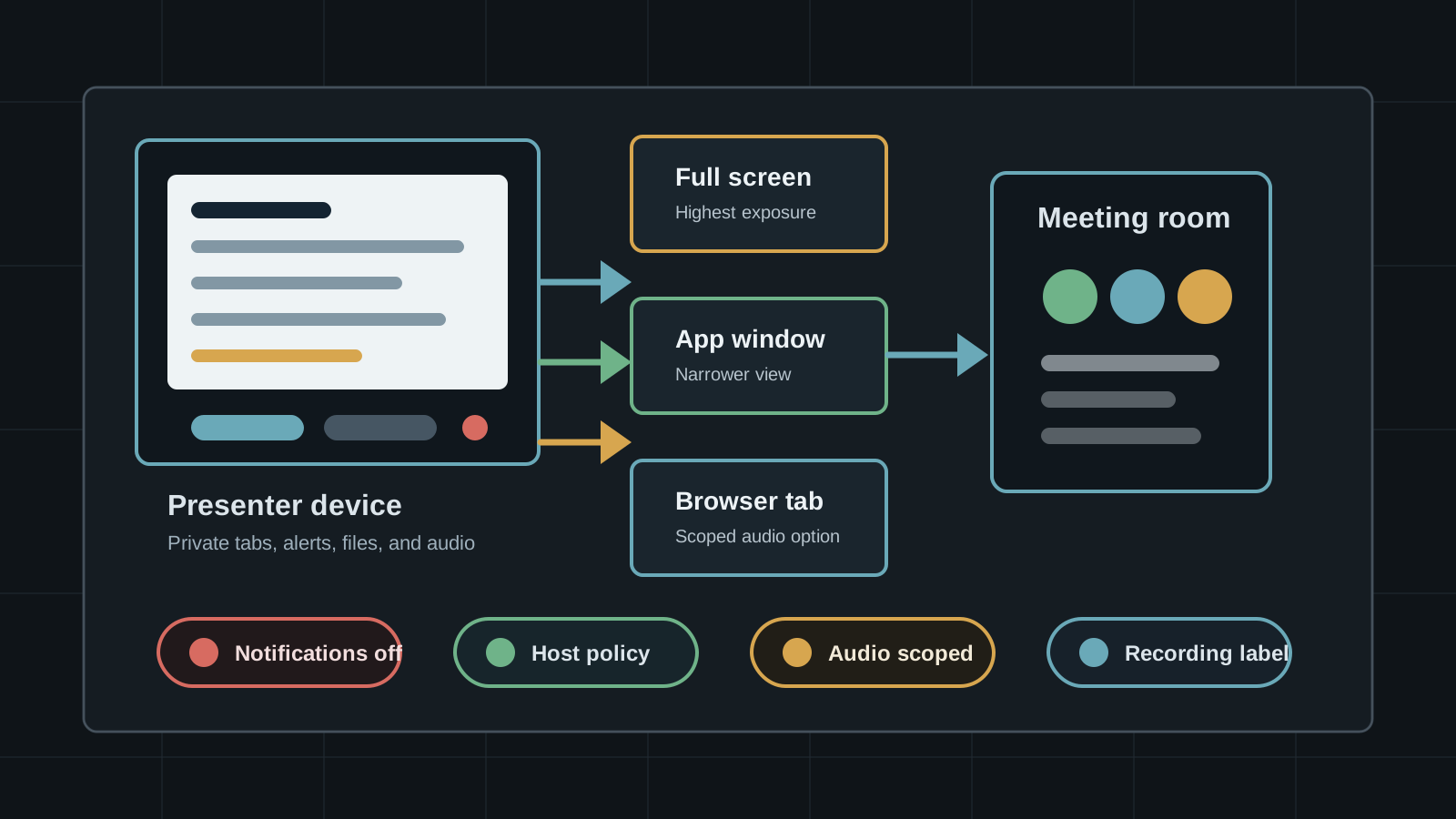
Screen sharing is usually treated as a convenience feature. In practice, it is a temporary publication channel from one person's device into a room that may include coworkers, contractors, customers, anonymous guests, recordings, transcripts, browser extensions, and note-taking tools. The person sharing may intend to show one document, but the share can include notifications, tab titles, account names, file paths, cached previews, internal URLs, calendar details, background windows, system audio, and meeting controls.
The safer posture is to treat screen sharing as a data boundary. Choose the smallest share surface that works, limit who can present, control guest participation, label recording and transcription behavior, turn off unrelated notifications, separate sensitive workspaces, and decide in advance when a presenter should stop sharing. The goal is not to make meetings slow. It is to stop a one-click collaboration action from becoming an uncontrolled data export.
Key Takeaways
- check_circle A screen share is live disclosure, not just a local view of a document.
- check_circle Full-desktop sharing exposes the most context. A single application window or browser tab is usually safer.
- check_circle Audio, notifications, clipboard previews, second monitors, meeting chat, and recording state are part of the exposure surface.
- check_circle Admin and host settings decide who can share, annotate, request control, record, and interrupt an active share.
- check_circle Browser and operating-system prompts help, but they cannot classify the sensitivity of the content on the screen.
- check_circle Sensitive teams need a short preflight and a clear stop-sharing rule before demos, incident calls, customer sessions, and external reviews.
Full Desktop Is The Highest-Risk Mode
Full-desktop sharing is often chosen because it avoids friction when switching between materials. It is also the riskiest mode because it carries everything that appears on that display. Browser tab titles can reveal customers, incidents, candidates, financial projects, internal tools, health information, legal matters, or private community channels. Local file names and folder paths can disclose project names or usernames. A second application that briefly appears behind the intended window can expose more than the presenter planned.
Window and tab sharing reduce that blast radius. They are not perfect because sensitive information can still be inside the selected surface, and some apps refresh content in unexpected ways. But they give the presenter a narrower object to reason about. For recurring demos, onboarding sessions, audits, incident calls, and vendor meetings, teams should default to a prepared browser profile, a dedicated demo workspace, or a single application window instead of a normal desktop.
Audio, Alerts, And Companion Surfaces Count
Screen sharing is not only pixels. Google Meet distinguishes tab audio from window or system audio. Zoom has options for sharing computer sound and warns that optimization choices affect what participants see. Slack huddles allow screen sharing and system audio selection. Those toggles matter because private calls, notification sounds, voice notes, media playback, or accessibility output can travel with the presentation when audio is included.
Notifications deserve the same attention. A calendar reminder can reveal a confidential meeting. A password manager prompt can reveal a domain. A direct message preview can identify a source. A security alert can disclose an active incident. Presenters should use focus modes, separate browser profiles, cleared downloads folders, closed chat sidebars, muted notification centers, and a meeting-specific desktop when sensitive work is likely to appear.
Host Controls Are Security Policy
Meeting controls are not only etiquette. Zoom notes that hosts can enable or disable participant screen sharing and can control who and how many people can share. Microsoft Teams lets administrators set screen sharing mode to entire screen, single application, or not enabled, and separately control PowerPoint sharing, whiteboard, annotations, document collaboration, and shared notes. Those settings decide whether a meeting is a managed presentation surface or an open broadcast channel.
The right policy depends on the room. Internal working sessions may allow multiple presenters and annotations. External customer calls may need organizer-only sharing, no anonymous presenters, and clear recording consent. Incident-response calls may need strict host control because one compromised participant or confused invitee can interrupt the call, share malicious instructions, expose unrelated data, or steer the group toward a phishing link.
Browser And OS Prompts Are Not Enough
The W3C Screen Capture draft treats display capture as a feature with significant security implications. It says applications using screen capture could access confidential information from other origins if that information is visible under the application's control, and it strongly recommends steering users away from sharing a monitor because of privacy risk. The same specification requires the user agent to let the user choose the display surface each time, and it says capture permissions should not be persisted.
Those browser and operating-system safeguards are useful because they require active selection and show capture indicators. They still cannot determine whether a visible dashboard contains export-controlled research, customer records, private health information, unreleased financial results, source code, signing keys, or a moderation queue. Product prompts ask what to share. Security policy has to answer whether it should be shared in that room at all.
Checklist
- Default to browser-tab or application-window sharing for demos, support, audits, and customer calls.
- Disable unrelated notifications, close private tabs, and use a dedicated browser profile before sensitive meetings.
- Restrict who can present, annotate, request control, and interrupt shares in external or high-risk rooms.
- Treat system audio as sensitive and enable it only when the audio is part of the intended presentation.
- Label recording, transcription, shared notes, and meeting-chat behavior before the first sensitive screen is shown.
- Review recordings and transcripts after sensitive calls and apply the same retention rules used for the underlying content.
Sources
Continue Reading
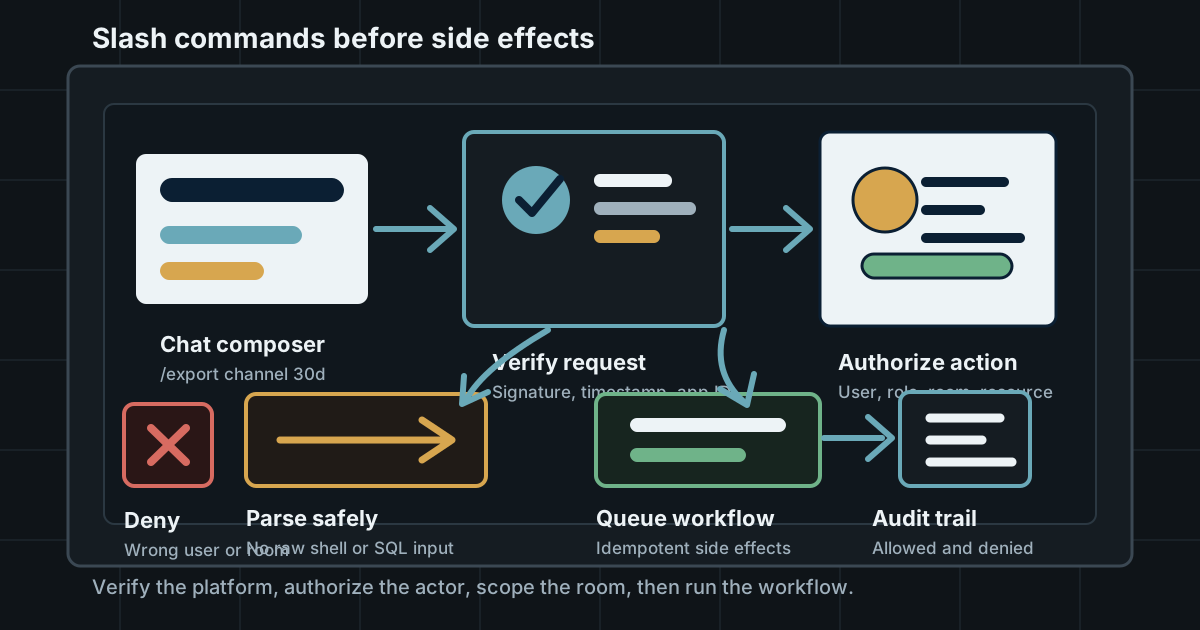
Slash Commands Need Authorization Boundaries
Slack, Discord, Telegram, and internal chat bots make commands feel lightweight. If a command can export data, change access, or trigger infrastructure, it needs the same authorization discipline as an API endpoint.
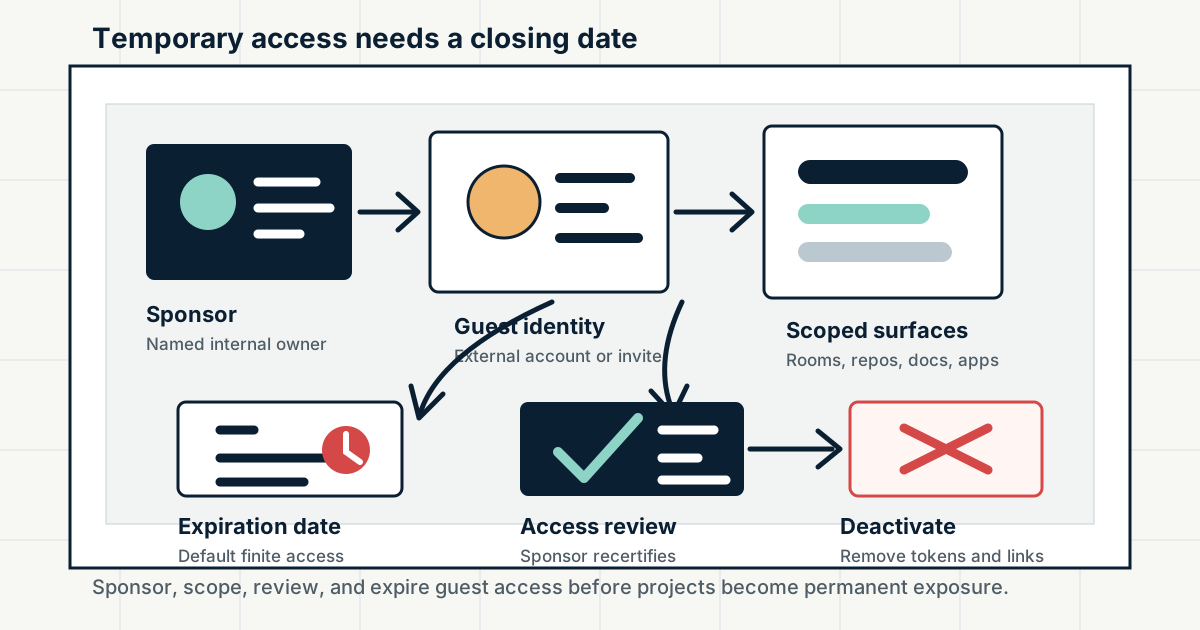
Guest Accounts Need Expiration Dates
Contractors, partners, clients, outside collaborators, and community helpers often need temporary access to chat, docs, repos, and tools. Without a sponsor, scope, review, and end date, guest access becomes quiet permanent access.
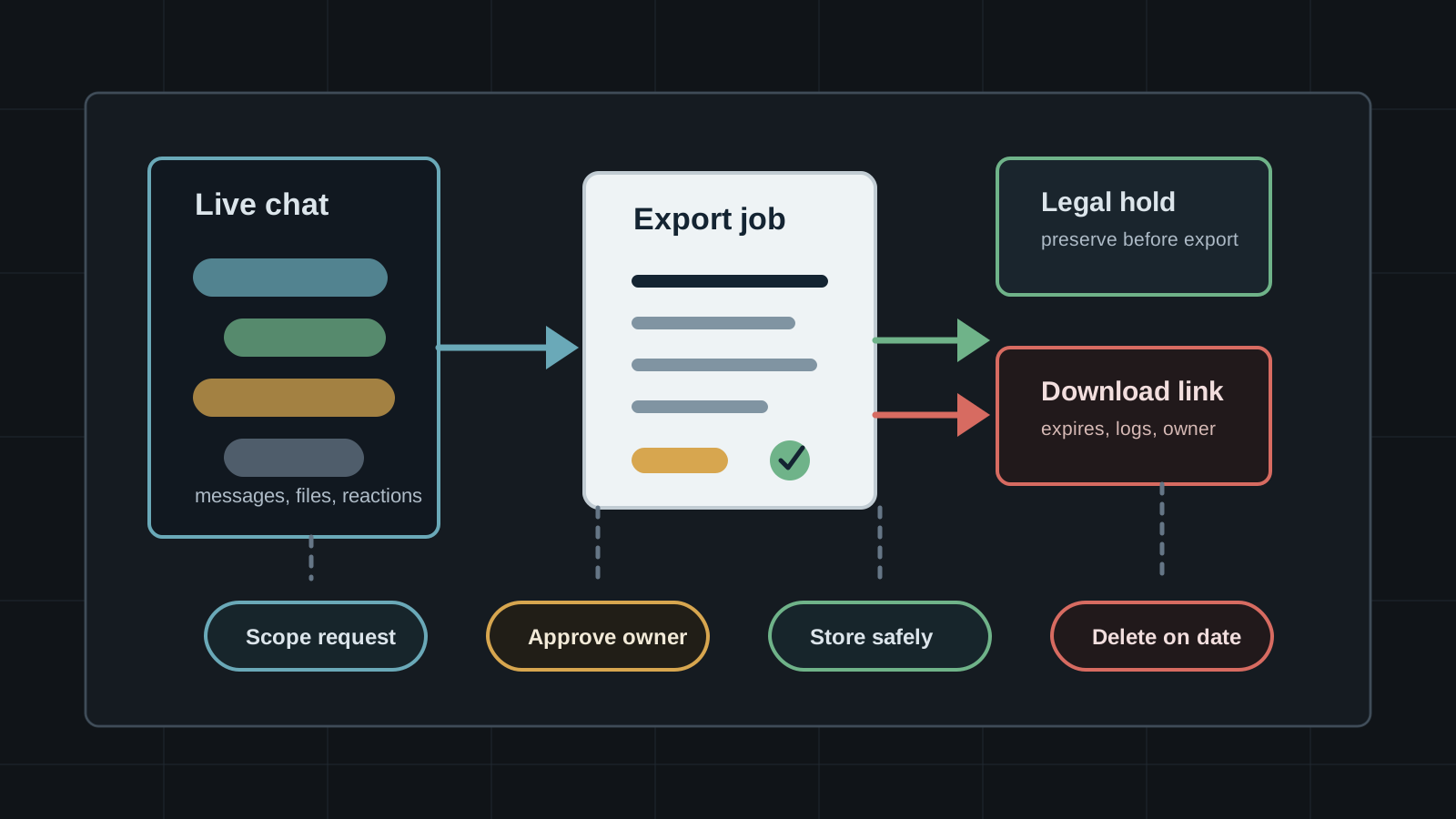
Chat Exports Need Access Controls
Slack, Discord, Telegram, Google, WhatsApp, and Teams all give users or admins ways to pull conversation data out of the live app. Export policy decides whether history becomes evidence, migration material, or a new leak.